XXX Website Cemetery / Graveyard

Timecard Safety Net
By Susan Hanly - Associate Consultant
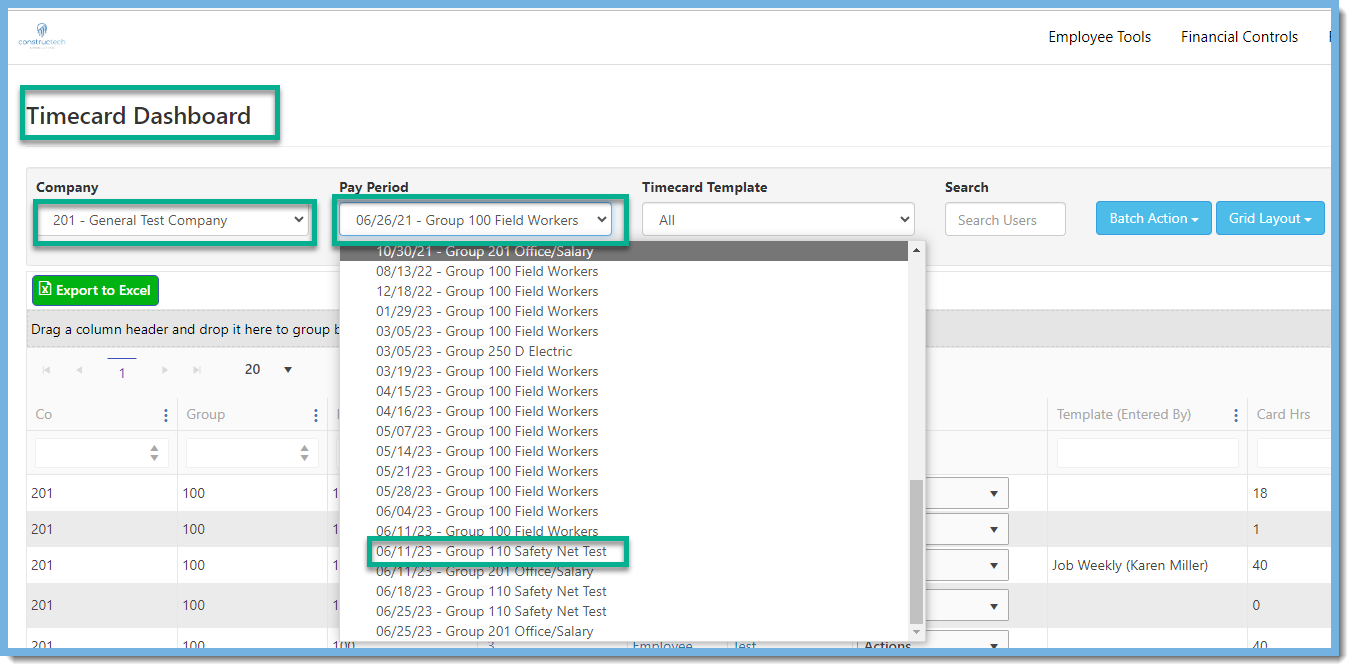
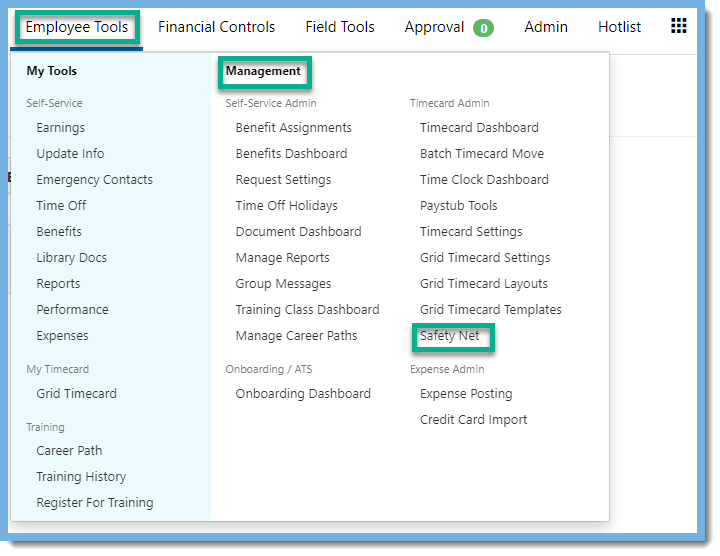 Let's take a look at how the Timecard Safety Net works. The first step is to Prepare the Batch. If the lines were removed from a batch that still exists, you can skip to below the last step in creating a batch. If the entire batch was cleared and canceled, start with this Timecard Dashboard image to create a new batch.
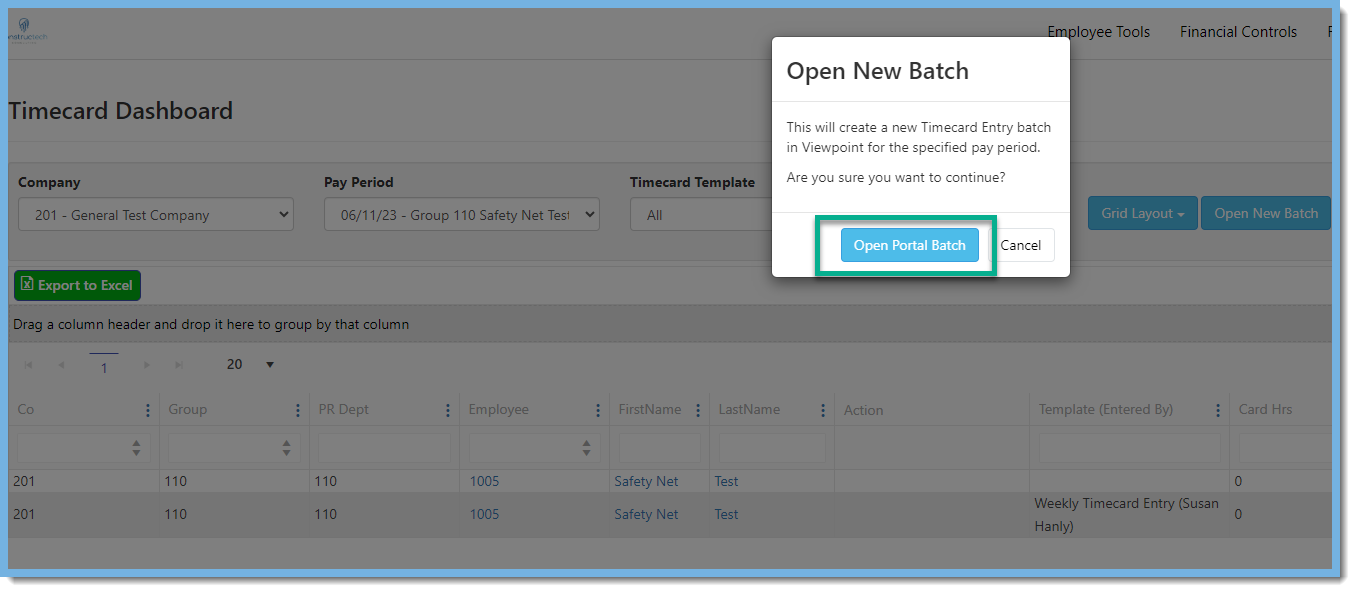
  Click on Open Portal Batch. This creates the new batch.
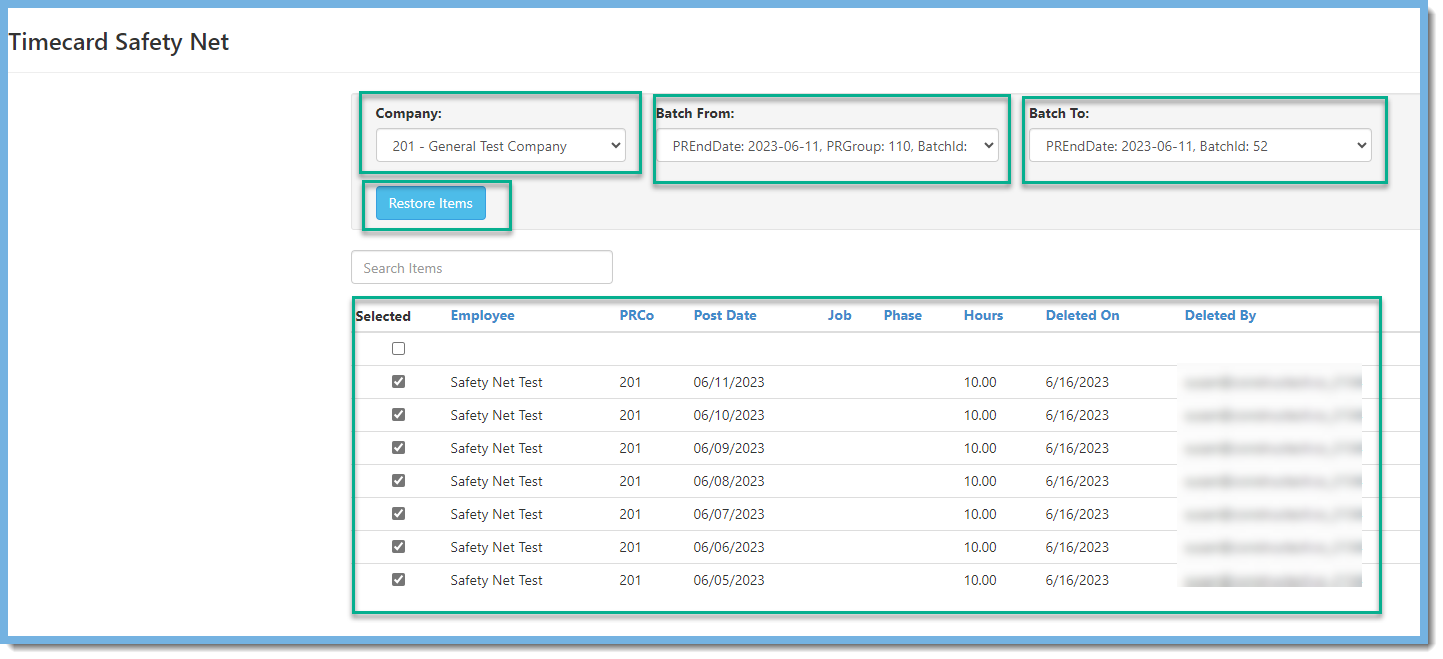
  Navigate to the the Timecard Safety Net which is under Employer>Management in the portal (as seen in the image above). In order to use the Safety Net you must be logged into the portal as Timecard Admin or System Admin. Once at the Timecard Safety Net screen, choose the correct company, Batch From (select the batch ID you want to restore the lines from) and Batch To (select the batch ID you want to restore the lines to). Note: If you deleted just some of the lines from a batch and the original batch still exists, then the Batch From and Batch To will be the same.
 This Safety Net feature is easy to use and will certainly be a lifesaver for many!